DzStore Tutorial: The Complete Beginner Walkthrough (Video + Steps)
From creating your account to your first delivered order — every screen of DzStore, explained with the official video and written steps.
D
Demo Admin
Author
From creating your account to your first delivered order — every screen of DzStore, explained with the official video and written steps.
Demo Admin
Author
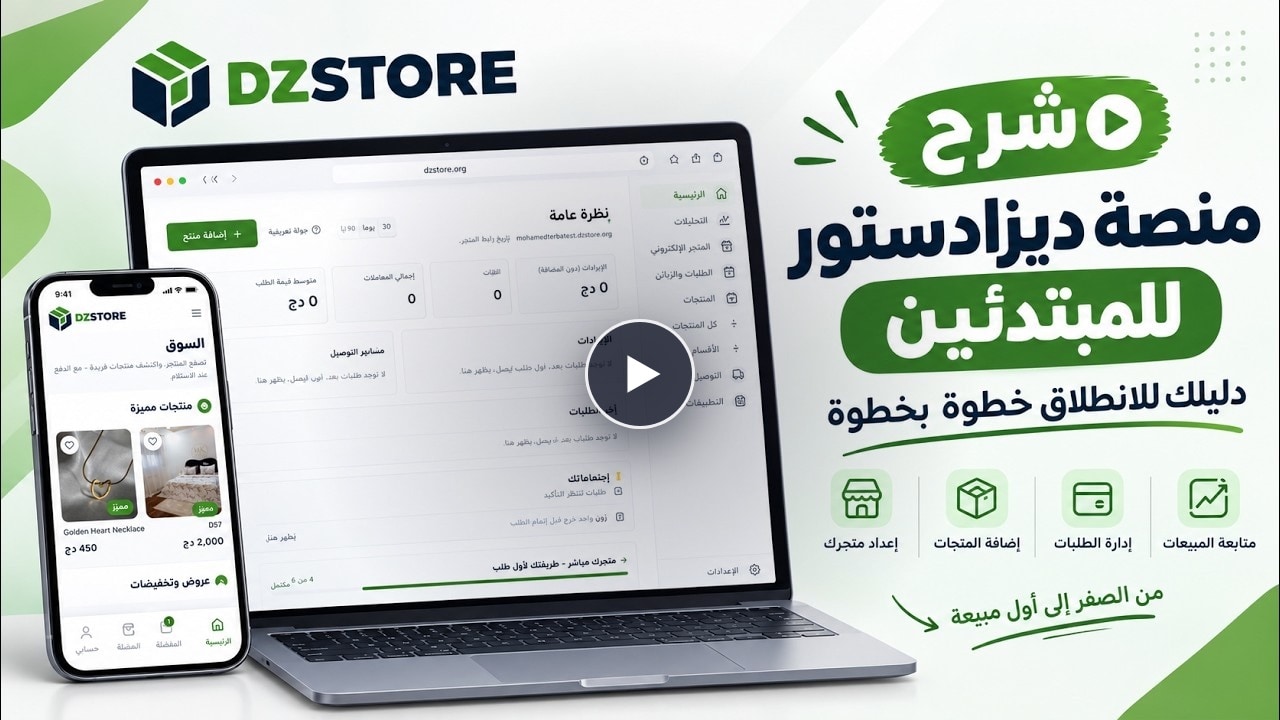
Everything you need to launch a DzStore shop on one page: the official video walkthrough, plus the written steps — from signup to your first delivered order.
The video is in Arabic — every step is written out below, so you can follow in your own language.
An email address. That's it — no credit card, no setup fee, and 0% commission on every plan. The free plan is free forever with 5 orders per month, enough to validate your first product.
On the sign-up page, create an account with your email and a password (8+ characters), or press "Continue with Google". Confirm your email from the link we send you, and you land straight in store setup.
Type your store name — that's the only thing we ask. Your store link is generated automatically in the form yourname.dzstore.org, with a live availability check and suggestions if the name is taken. Important: the store link cannot be changed after creation — check it carefully before continuing. Then two quick questions (one product or several? where do you sell today?) and your dashboard opens with a nudge to add your first product — an empty store shows "Opening soon" to visitors.
In Products → Add product: write the name and let "Generate description with AI" do the selling copy (5 free descriptions per month, unlimited on PRO — it writes in your dashboard language), or write your own. Set the price and a compare-at price for discounts, add quantity offers ("2 for 6,900 DZD"), stock or unlimited quantity, and up to 10 images (drag & drop, auto-optimized). Add sizes and colors with their own price modifiers and swatches, fill the SEO fields, and create the product. Use the eye icon to preview it exactly as customers will see it.
Selling on Shopify, WooCommerce or YouCan? Go to Products → "Bring from another store", paste your old store link, preview what was found (products, variants, images, prices), then transfer everything in one click — your old store stays untouched. No store link? Upload a CSV instead (up to 200 products, 5 MB; columns: name, description, price, stock, category, tags — Shopify and WooCommerce formats are detected automatically).
Twelve designs are included and all of them are free — from Épure (perfect for a one-product store) to Souk (large catalogs) and Noir (dark luxury). Preview any design full-size, apply it, then open the builder for full control: add sections — hero banners, featured products, category showcases (Core), promo banners, testimonials, trust badges (Marketing), image + text, FAQ, video (Content), Instagram feed, map (Social) — drag to reorder, change the logo position, search bar, colors and fonts, then save a draft and publish.
Choose how customers order: "Cart + Buy now" (recommended), "Buy now only" for one-tap orders, or "Cart only". Then show or hide checkout fields: delivery type (home/office), commune, full address (optional or required), customer notes, and the promo code field when discount codes are on. Name, phone and wilaya are always required — that's what you need to deliver.
In Delivery → Delivery prices you get all 69 wilayas and 1,541 communes with home and desk prices (defaults: 600 / 400 DZD), estimated days, and a free-shipping threshold to lift your average basket. Disable any wilaya — or a single commune — you don't cover, or bulk-update prices in one action. In the carriers tab, connect from 100+ integrated carriers (Yalidine, ZR Express, Maystro, Noest, Guepex, and the whole Ecotrack network — or your own Ecotrack shop), test the connection, set your default carrier, and send orders automatically. The cash-from-carriers screen shows what every carrier still owes you.
Every order lands in Orders with statuses from "Pending" to "Delivered" (or "No answer", "Returned", "Cancelled"). The "To call" queue is built for confirmation: keyboard shortcuts (1 confirm, 2 no answer, 3 call back, 4 cancel), a WhatsApp button next to every phone number, a duplicate-phone warning, and the customer's full order history. Abandoned carts are captured automatically while shoppers type at checkout — you can send a reminder or a pre-filled WhatsApp message and watch them turn green as "recovered". One free-plan note: after 5 orders in a month, customer details are hidden until the new month or an upgrade — orders keep coming, nothing is lost.
Analytics shows sales (revenue, orders, customers, average order value, top products, top wilayas) and visitors (page views, unique visitors, top pages with conversion, traffic sources and devices). On PRO you also get the Profit tab: real profit per product after cost, ads and returned orders.
In Apps: discount codes, tracking pixels (Meta, TikTok, GA4, Snapchat), a print-ready QR code for your store, a Facebook & Instagram product catalog feed, pack prices and Google Sheets sync. PRO adds your own custom domain. Settings covers your store name, store language, logo and colors, contact details and socials. And when you need a human, Help & contact inside the dashboard reaches the DzStore team — support@dzstore.org, fast replies, 24/7.
You now know the whole platform. Setting up takes minutes — the rest is your product. Open your free store and add your first product tonight. New to plans? See which DzStore plan fits you — and if you're migrating, our switch guide walks you through it.
Demo Admin
Author · dzeri.org